

With the NeetoForm Slack integration, you can get instant notifications when someone submits a form. This allows you and your team to respond promptly to new leads or customer inquiries. It also allows you to organize your incoming form data and quickly search for relevant conversations within Slack.
To integrate Slack
Go to your form dashboard, open your form, and click on Settings.
Click on the Integrations tab on the left-hand side.
Find Slack on the Integrations page and click Connect Slack.
You’ll be asked to log in to Slack and give NeetoForm permission to access your workspace.
After logging in, allow NeetoForm to access your workspace.
If you have more than one workspace associated with your email, you can select it from the drop-down menu at the top-right corner.
After clicking Allow, it’s time to choose where you share your responses. Click the drop-down menu to browse your Slack channels, including private channels and direct messages.
Once you select a channel, your Slack integration will connect.
Now, you can receive notifications in Slack whenever someone submits a response to your form.
Connecting a private Slack channel
By default, only public channels from your workspace appear in the channel dropdown. To send NeetoForm notifications to a private channel, you need to add the NeetoForm app to that channel manually in Slack.
Complete the standard Slack integration steps above (Settings → Slack → Connect Slack → Allow).
Open Slack and Go to the private channel where you want NeetoForm notifications to be delivered.
-
In the message box, type
/ addand select Add apps to this channel from the suggestions.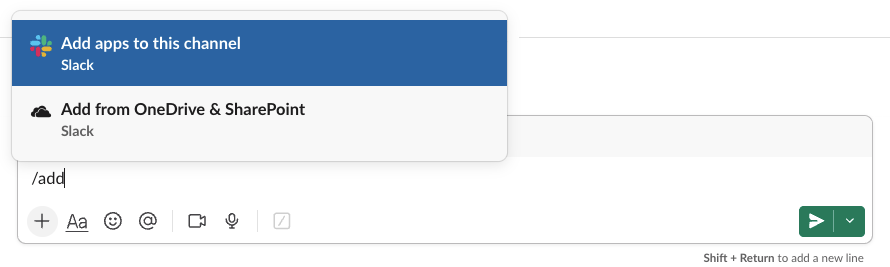
-
Find NeetoForm in the list and click Add.

-
Return to the NeetoForm Slack integration screen and click the Refresh channels list button. Your private channel now appears in the dropdown, marked as private.

Select the private channel and click Continue.
Click Done.
NeetoForm notifications will now be delivered to that private channel.